Connecting erwin Data Modeler to Microsoft Fabric Warehouse
You can connect erwin Data Modeler (erwin DM) to Microsoft Fabric Warehouse for reverse engineering. This guide walks you through the prerequisites and steps to connect to Microsoft Fabric (MS Fabric) warehouse. You can download the PDF version of this guide here.
The Microsoft Fabric Warehouse is certified using SQLServer: Azure and Azure Synapse: SQL Pool. This is applicable to erwin DM 15.1.
Prerequisites
-
erwin DM version 15.0 or later
-
Access to Microsoft Fabric workspace with a warehouse (SQL analytics endpoint) deployed and contributor-level permissions
-
Microsoft Entra ID credentials with access
-
SQL client support (For example, Microsoft ODBC / Native client drivers) installed on the erwin DM host machine
Workflow
To connect to your Microsoft Fabric warehouse and reverse engineer, follow this workflow:
Step 1: Obtain SQL Connection String
To obtain the SQL connection string, follow these steps:
-
Log in to the Microsoft Fabric portal. (https://app.fabric.microsoft.com/)
-
Within your workspace, locate your warehouse.
-
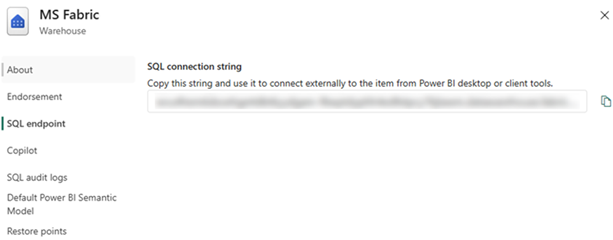
Go to the Settings menu and under SQL analytics endpoint
-
Copy the SQL connection string
Step 2: Configure ODBC Data Source to Connect erwin DM
To configure an ODBC data source, follow these steps:
-
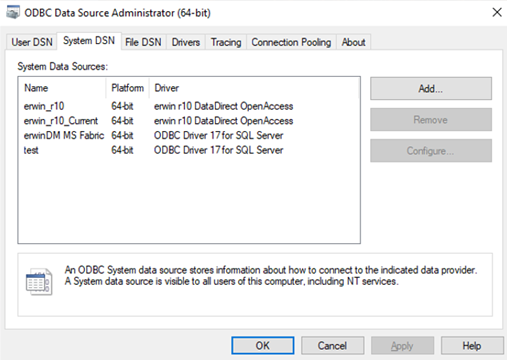
Open ODBC Data Source Administrator (64-bit)
-
On the System DSN tab, click Add.
-
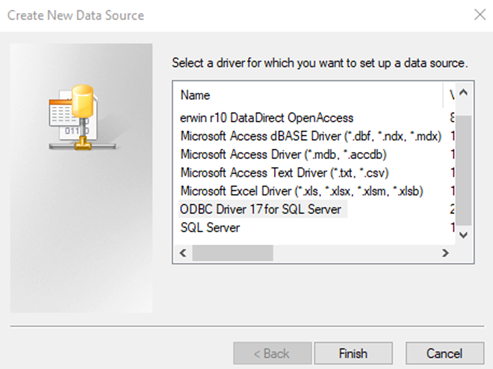
Select ODBC Driver 17 for SQL Server or latest.
-
Click Finish.
-
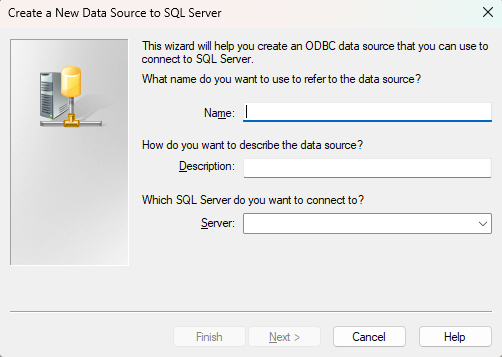
Enter Name. Then, under Server, paste the MS Fabric SQL connection string.
-
Click Next.
-
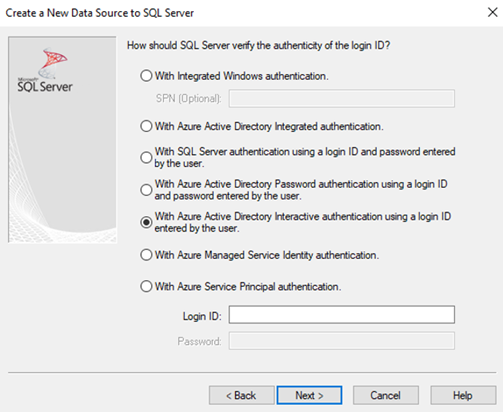
Click With Azure Active Directory Interactive authentication using a login ID entered by the user.
-
Change the default database to your warehouse. You will be asked to sign in.
-
Enter credentials and click Test connection.
-
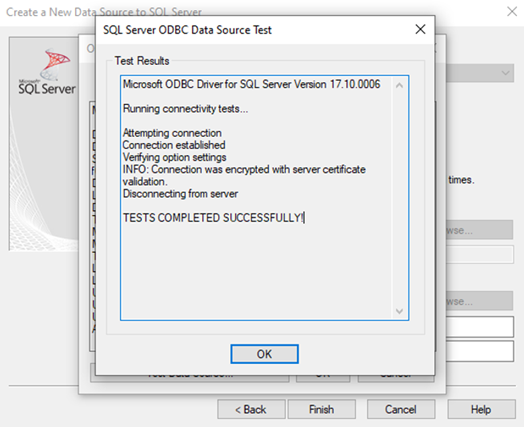
Click Finish and then click Test Data Source.
A confirmation screen appears.
Step 3: Reverse Engineer
To reverse engineer from your MS Fabric warehouse, follow these steps:
-
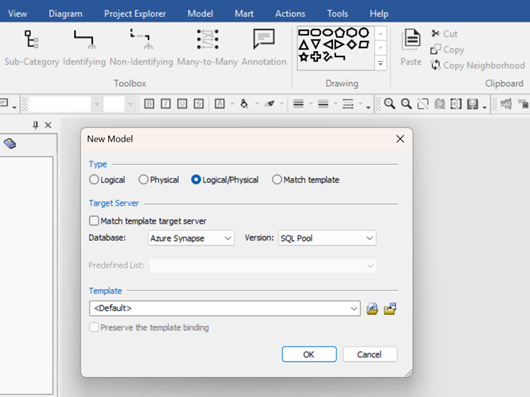
In erwin DM, on the ribbon, click Actions > Reverse Engineer.
The database selection screen appears.
-
In the Database list, select Azure Synapse or SQL Server. If you select SQL Server, select Azure from the Version dropdown. and for Azure Synapse, select SQL Pool from the Version dropdown.
-
Click Next.
-
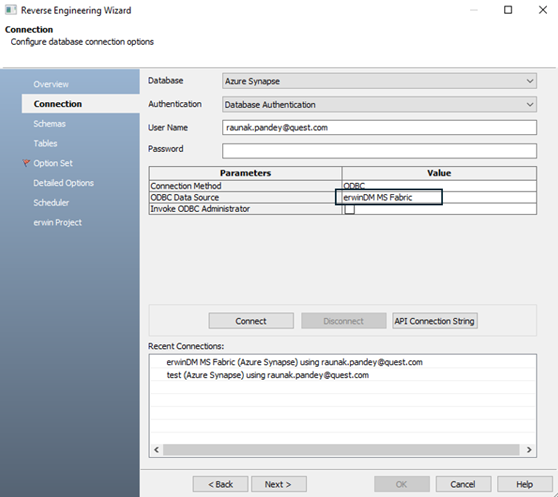
Authenticate using your Microsoft Entra ID.
-
In the ODBC Data Source, select the created ODBC data source. In this case, erwinDM MS Fabric.
-
Click Next.
-
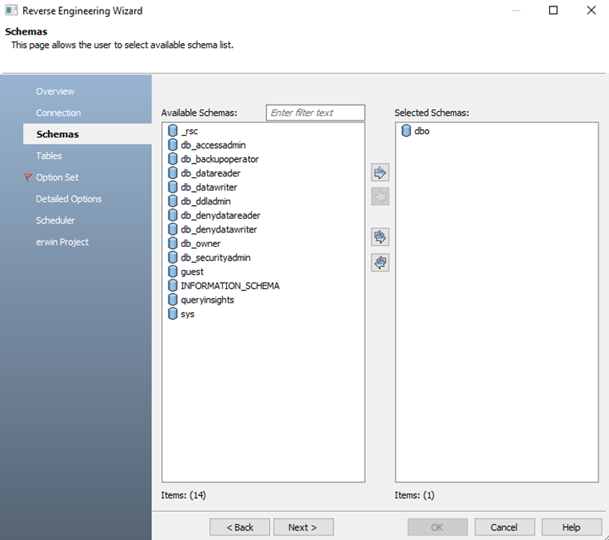
Select schemas and click Next.
-
Select tables and click Next.
-
Define options such as indexes, keys, and enforce relationships.
-
Click OK.
The reverse engineering process runs, and a logical/physical model is created.
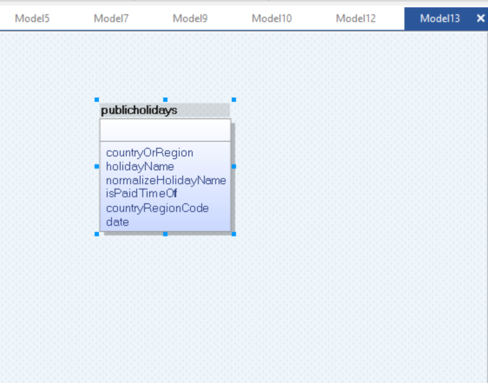
You can work on the data model in erwin DM and then forward engineer your updates to MS Fabric.
To forward engineer your model, follow these steps:
-
On the ribbon, click Actions > Schema
-
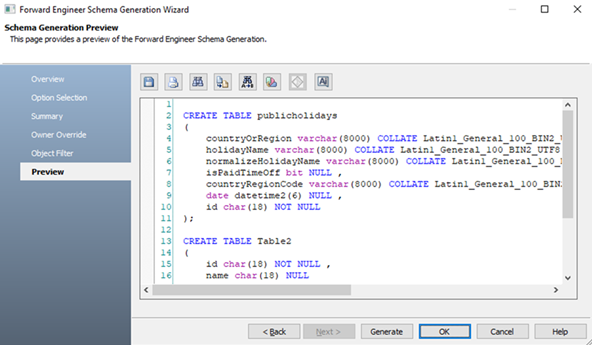
Click the Preview tab.
-
Use one of the following options:
-
Generate DDL script locally: Click
 .
. -
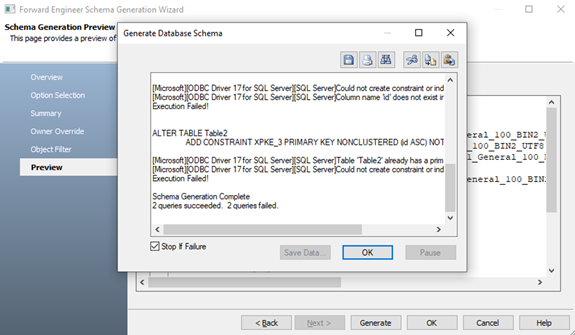
Generate DDL on MS Fabric: Click Generate. Then, click OK. The schema will be forward engineered to your warehouse.
-
MS Fabric Warehouse Objects and Properties
The following list outlines the SQL Server Azure objects supported under MS Fabric Warehouse.
-
Function
-
Procedure
-
Role
-
Schema
-
Security Policy
-
Statistics
-
Table
-
View
For information on the properties which are applicable to SQL Server Azure under Fabric Lakehouse, refer Warehouse Objects and Properties List.
To view the list of Azure Synapse SQL Pool objects and properties supported under MS Fabric Warehouse, refer Azure Synapse Object Support.